
Suspending Your Workstation
Overview
WorkstationA workstation is a powerful computer system designed for pro... More Suspension allows users to suspend a Workstation, which will power down a compute instanceAn Amazon Virtual Machine More and save all software, configuration settings, and files to the Workstation disk. This functionality is just like powering off your computer.
- Suspend and Resume Workstations: It’s like turning your computer on and off.
- Workstations start-up in < 2 minutes (applies to resume from suspension)
- All software, configuration settings, and files will be saved to the Workstation so that users can pick up where they left off
Suspending a Workstation
In order to suspend a workstation, you can click Suspend Workstation from the top action icons or click the Suspend Workstation icon in the right-hand action menu.


Once you click Suspend Workstation, a drawer will appear confirming your Workstation of choice to suspend.
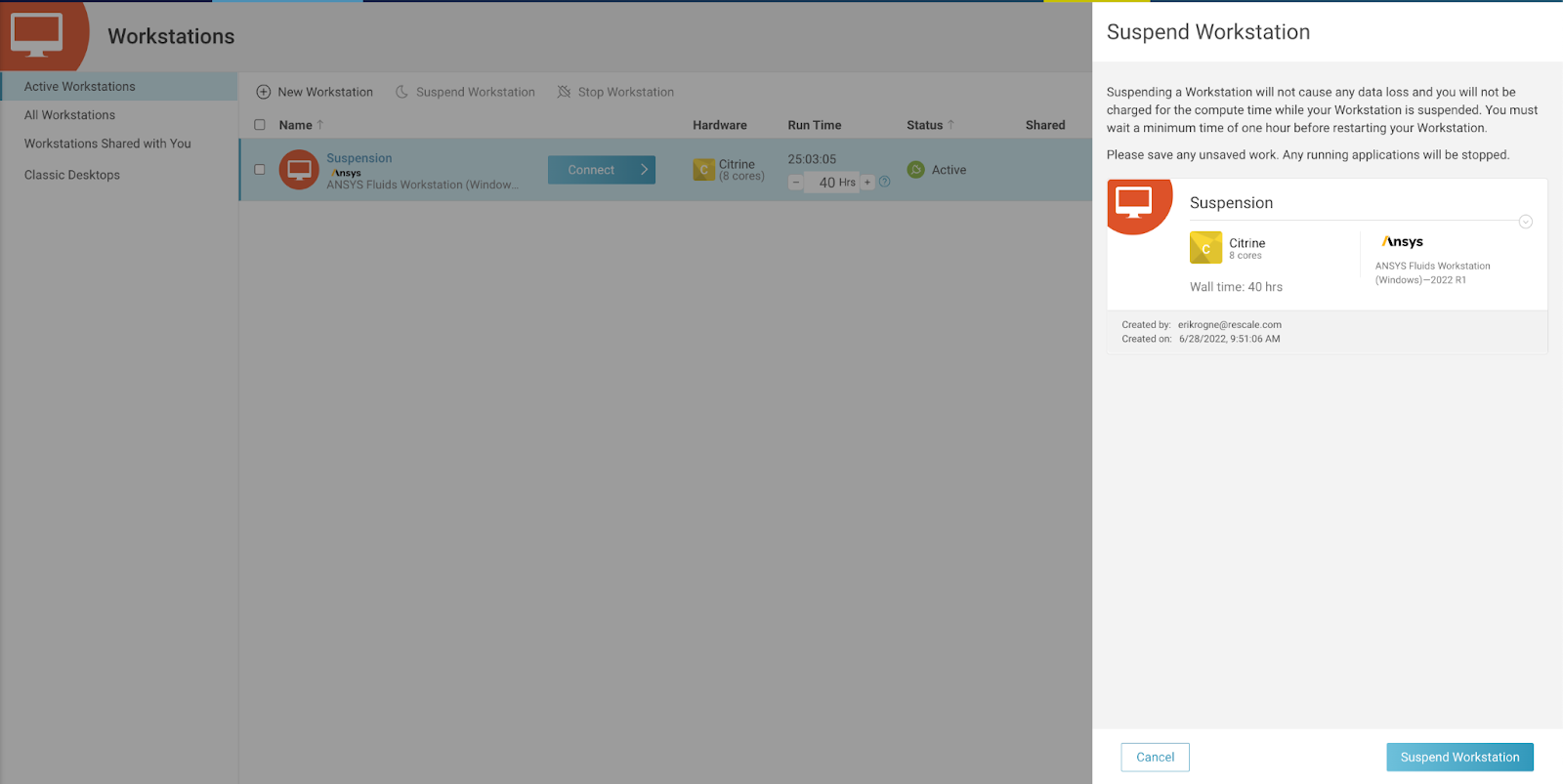
Before suspending a Workstation, please note the following:
- You cannot stop a Workstation from a suspended state. Instead, you must resume your machine before stopping.
- Suspending a Workstation will not cause any data loss and you will not be charged for the compute time while your Workstation is suspended.
- Compute cost and Workstation license will not be charged. Platform license will continue to accrue.
- Any running applications will be stopped.
After clicking Suspend Workstation, your Workstation will go into a Suspending status. The time to suspend will vary, but will generally take 5 minutes to shut down the clusterA computing cluster consists of a set of loosely or tightly ... More.

When you suspend a Workstation, the walltime will be paused and only applies to active running time. Upon resuming from suspension, walltime will be resumed from where you left off. If you would like to increase the walltime, you can do so from the Workstation Home Page.
Resuming from Suspension
In order to resume your Workstation, click Resume. Resuming from Suspension will resume your Workstation compute instance and you will begin to be charged for compute again.

Once you click Resume, your Workstation will show a Resuming bar.

The time to start up the Workstation will vary but is expected to resume in under 3 minutes.
Note: This applies to only resuming after a suspended state, and not to the first-time startup (installs software, OS, starts cluster).
When you reconnect to the Workstation all software, configuration settings, and files will be saved to the Workstation so that you can pick up where you left off
Viewing Suspension Stats
In order to view how long your Workstation has been Active and Suspended, click on your hyperlinked Workstation name to bring you to the detail page. You will be able to view Suspension Stats on the detail page.

Active Time represents the time your Workstation compute instance is powered on and you are being charged for hardware compute. Suspended Time represents the time your Workstation compute instance is powered down and you are not being charged for hardware compute during this time.
In the logs, you will be able to view detailed status changes, including the current corean individual processing unit within a multicore processor o... More hour summaries.

Autosuspend
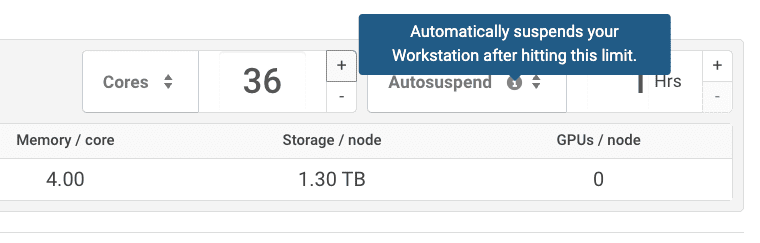
Autosuspend will automatically put your Workstation into a suspended state, conserving resources and reducing charges, after hitting your defined time limit. To resume activity, simply click the “Resume” button to start your Workstation and pick up where you left off.
There is no limit on the number of autosuspends and we will automatically add +4h to your defined time limit upon each autosuspend limit being hit. This limit can be modified at any time.
Collaboration
Users who are given shared access to a Workstation will not be able to Suspend/Resume the Workstation. This is a guardrail to give full control to the primary owner.
Support
OS: Suspension supports both Windows 2019 and Linux operating systems.
Hardware: Azure CoreTypes and AWSAmazon Web Services (AWS) is a subsidiary of Amazon.com that... More CoreTypes
Nodes: Single-Node
FAQ
What are the benefits of Workstation Suspension?
Workstation Suspension offers a couple of benefits:
- Workstations will start-up in < 3 minutes.
- All software, configuration settings, and files will be saved to the Workstation so that users do not have to reconfigure a blank Workstation each time they start a machine.
When should I use Workstation Suspension?
We recommend using Workstation Suspension anytime you plan on using a Workstation again! When you suspend a Workstation, your Workstation is your computer in the cloud and allows you to save all of your configuration settings, files, and software. Additionally, you will not be charged for the hardware compute when a Workstation is suspended. Specific examples where it may come in handy:
- You’re going home for the day, but plan on using a Workstation tomorrow
- You regularly use a standard Workstation configuration for pre/post-processing
Which hardware is eligible for suspension?
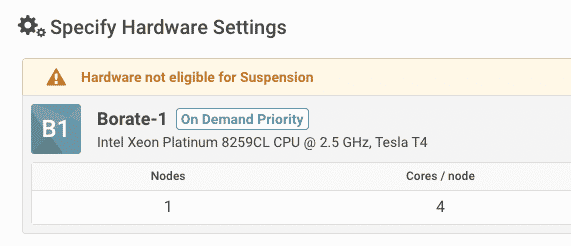
We support single-node configuration on most available coretypes, you will see a prompt (instead of an error) if the selected hardware is not eligible for suspension.
Can I switch hardware when I suspend a Workstation?
No, you cannot switch hardware when you suspend a Workstation today (e.g. Citrine 8 cores –> Citrine 32 cores); this is a planned functionality for the future.
Can I add more software to a Workstation?
By default, you cannot add additional software to a Workstation once it has been started. If you would like the ability to add software after a Workstation has started, you can request Administrator Privileges from your Rescale representative, which will allow you to install the software yourself from within a Workstation.